
Imagine planning your next adventure with ease and precision, all from the comfort of your own device. You can do just that by creating a travel itinerary using Google Maps.
This powerful tool is not just for finding directions; it can help you organize your entire trip, ensuring you don’t miss a single landmark, restaurant, or hidden gem. But where do you start? How can you transform a list of must-see places into a seamless itinerary?
You’re about to discover how Google Maps can be your ultimate travel companion. With step-by-step guidance, you’ll learn how to map out your destinations, schedule your activities, and optimize your travel time. This process is not just about plotting points on a map; it’s about crafting an experience that leaves you feeling confident and excited for your journey ahead. By the end of this article, you’ll be equipped with the skills to create a personalized itinerary that caters to your unique travel desires. You’ll feel empowered, knowing that your trip is planned to perfection. So, dive in and explore how you can turn Google Maps into your personal travel planner. Your adventure awaits!
Getting Started With Google Maps
First, open Google Mapson your device. You need a Google Accountto use it. Sign in with your email and password. If you do not have an account, you can make one. It’s free and quick.
After logging in, your home locationis set. You can change it later. Make sure your location services are on. This helps Google Maps find your position. You are now ready to explore the world!
The main screen shows a mapof your area. Use your fingers to zoom in or out. Look around by dragging the map. The search bar helps you find places fast. Type the name of a city or place.
On the bottom, see options like Exploreand Commute. Each has useful tools. The menu on the left gives more settings. Try tapping on places to learn more. You can even save them for later.

Credit: www.wikihow.com
Planning Your Route
Adding destinationsis simple in Google Maps. First, open the app. Search for your starting place. Then, tap “Directions.” Enter your next stop in the search bar. Click the “+” button to add more stops. You can add up to nine destinations.
Make sure each stop is in the right order. Drag and drop the stops if needed. This helps keep your route organized. It’s easy to change stops later too.
Optimizing travel timehelps you save time. Check the map for traffic warnings. Google Maps shows red lines for heavy traffic. Choose the fastest route by avoiding these areas. You can also check the estimated travel time. This helps in planning your day better.
Customizing Your Itinerary
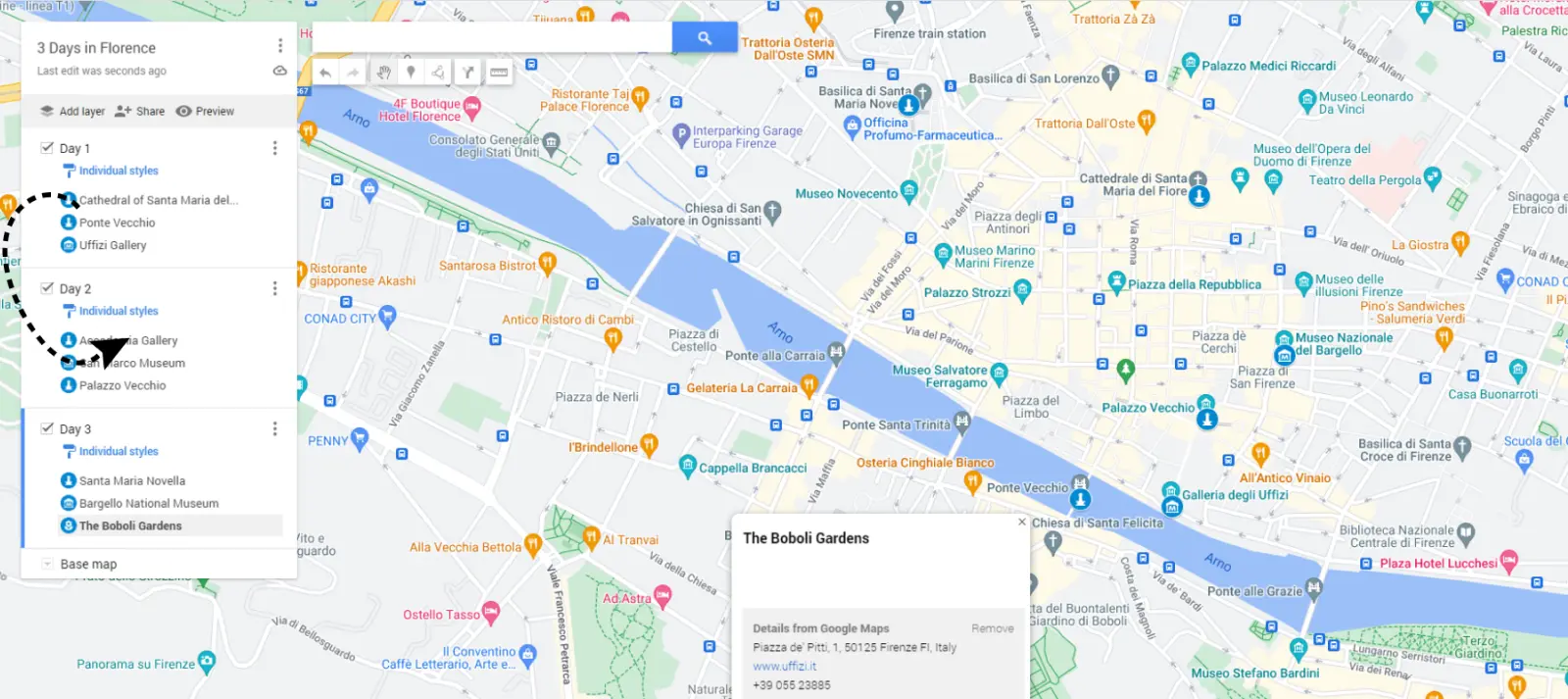
Google Mapslets you save your favorite places. Tap the location you like. Select the “Save” option. Choose a list like “Favorites” or “Want to go”. You can even make a new list. This helps keep your spots organized. Easy to find later. Handy for quick access. Planning made simple.
Adding notes in Google Maps is possible. Click on a location. Use the “Label” feature. Write down your thoughts. Write tips for yourself. Keep track of important details. Like opening hours. Or ticket prices. This ensures you remember key info. Makes your trip smoother. Keeps you prepared.
Utilizing Google Maps Features
Google Maps Street View helps you see places up close. You can look at the streets and buildings as if you are there. This makes planning your trip easier. Find the best routes and explore nearby areas. You can also check for landmarks and parking spots. Use Street View to pick restaurants and cafes. It helps you know what to expect when you arrive.
Google Maps shows local attractions near your destination. You can find museums, parks, and shopping centers. Each place has reviews and photos. This helps you decide where to go. Add these attractions to your itinerary. It helps save time and ensures you visit the best spots. Use the search function to find hidden gems too.
Sharing And Collaborating
Explore the ease of creating travel itineraries in Google Maps by sharing and collaborating with friends. Add locations, plan routes, and discuss plans seamlessly for a memorable journey.
Inviting Friends And Family
Invite friends and family to your travel plan. Open Google Maps and find your itinerary. Click the share option. Enter email addresses of your friends. They will receive an invitation. They can view your travel plan. They can suggest changes or add comments. Collaborate easily with everyone.
Collaborative Editing
Google Maps allows collaborative editing. Friends can edit the itinerary with you. Everyone can add places to visit. They can suggest restaurants or attractions. Changes are seen immediately. Everyone stays updated. Work together to make the best plan. Share ideas and explore together.
Managing Offline Access
Downloading maps makes trips easy. Open Google Maps on your phone. Search the place you will visit. Tap the location name at the bottom. Look for the Download button. Tap it to save the map. This helps when there’s no internet. Now, you can see streets and places offline. Maps stay on your phone until you delete them.
Accessing trips without internet is useful. Open Google Maps. Tap on Saved places in the menu. Find your itinerary list. Choose the trip you want. All spots and routes appear. Maps work offline if downloaded. Check that maps are saved before leaving home. This way, you won’t get lost.
Troubleshooting Common Issues
Creating a travel itinerary in Google Maps can face common issues. Ensure your destination pins are accurate and saved. Verify your maps are available offline to prevent navigation problems during your trip.
Resolving Location Errors
Sometimes, Google Maps might show the wrong location. This can happen if the address is not clear. Always double-check the address spelling. Make sure it matches the real location. Some places have similar names. Choose the correct one from the list.
The pin might be in the wrong spot. You can move it to the right place. Drag the pin to the correct location on the map. This helps Google Maps show the right spot.
Addressing Connectivity Problems
Google Maps needs internet to work well. If the map is not loading, check the internet connection. Sometimes, the Wi-Fi signal is weak. Move closer to the router or use mobile data.
Turn off airplane mode if it’s on. This mode stops internet connections. Restarting the phone can also help. This refreshes the internet settings. After restarting, try opening Google Maps again.

Credit: www.belaroundtheworld.com
Credit: www.routific.com
Frequently Asked Questions
How Do I Start A Travel Itinerary In Google Maps?
To start, open Google Maps and sign in. Search for your destination, then click “Save” to add it to a new list. Continue adding locations by searching and saving them. This method helps organize your trip efficiently.
Can I Add Multiple Destinations In Google Maps?
Yes, you can add multiple destinations in Google Maps. After selecting your starting point, click on “Directions. ” Then click “Add destination” to include more stops. This feature is perfect for planning detailed travel itineraries.
How Do I Customize My Travel Itinerary?
Customize your itinerary by labeling places and adding notes. Use the “Edit list” option to personalize your travel details. This allows you to tailor the itinerary to your preferences, ensuring a more enjoyable trip.
Can I Share My Google Maps Itinerary?
Yes, you can share your itinerary with others. Click on the “Share” button in your saved list. This generates a link you can send via email or messaging apps, making collaboration with travel companions easy.
Conclusion
Creating a travel itinerary in Google Maps is simple. It helps plan trips efficiently. You save time and reduce stress. Explore places on the map. Add stops and destinations easily. Share your itinerary with friends. Access it on your phone or computer.
Customize your plans to fit your needs. Discover hidden gems along the way. Enjoy your travels with organized plans. Make memories effortlessly. Google Maps makes travel planning fun and easy. Start planning your next adventure today. Your journey awaits. Happy travels!