
Planning a road trip can be exciting but also overwhelming. You want to make sure every stop is perfect and the route is smooth.
What if you could easily map out your entire trip in just a few clicks? With Google Maps, you can do exactly that. In this guide, you’ll learn how to create a road trip that fits your schedule, interests, and pace.
Keep reading, and by the end, you’ll have a clear, personalized route ready to hit the road with confidence.
Set Up Google Maps
Open Google Mapson your device by visiting maps.google.com or using the app. Access requires an active internet connection. Signing in to your Google accountlets you save and sync your road trip plans across devices.
Click the sign-in buttonat the top right corner of the page. Enter your email and password. This step keeps your trip details secure and easy to find later.
- Use the same account on all devices to see your route everywhere.
- Sign out if using a public or shared device for safety.
- Keep your login details private to protect your trip info.
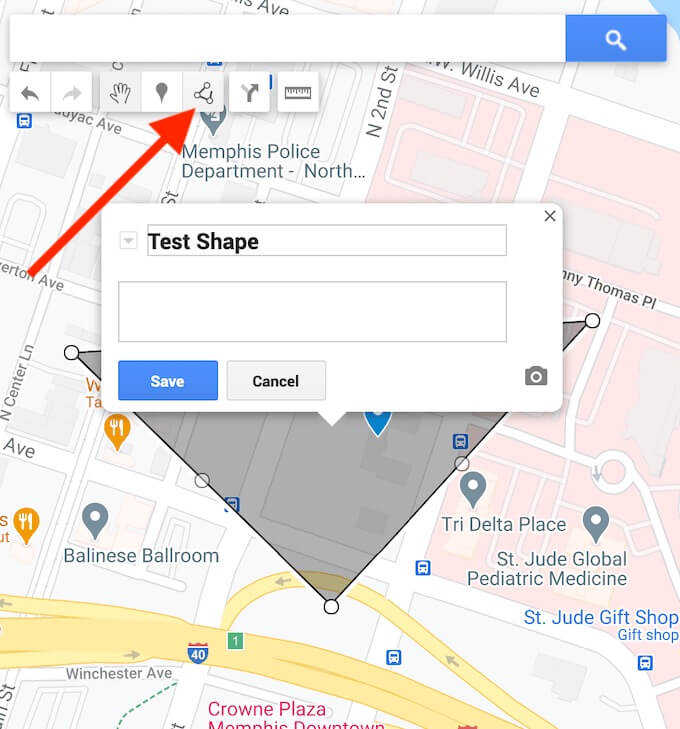
Credit: www.online-tech-tips.com
Plan Your Route
Start by entering the exact addressor name of your starting point. This helps Google Maps give clear directions right away. It can be your home, hotel, or any place where your trip begins.
Next, add all the destinationsyou want to visit. You can include cities, landmarks, or stops along the way. Use the “Add destination”button to keep adding places.
To save time, Google Maps lets you rearrangethe order of your stops. Drag the destinations up or down to find the best route. This helps avoid backtracking and makes your trip smoother.
Customize Your Trip
Choose your transportation modein Google Maps. Click the car icon for driving. Select the bus icon for public transit. Biking or walking options are also available. Each mode shows different routes. Check which suits you best. Modes affect travel time and distance.
Want to skip tolls or highways? Click on “Options” under the route. Select “Avoid Tolls”to skip toll roads. Choose “Avoid Highways”to stay on smaller roads. This can make your trip longer. But it might save money or offer scenic views.
Add stops for food or rest. Tap the three dots next to the location. Click “Add stop”. Type the name of a place. Repeat to add more stops. Drag stops to change their order. Stops help break long drives. Make your trip more fun and relaxing.

Credit: www.wikihow.com
Save And Share Your Road Trip
Saving your map lets you keep your road trip plans safe. Click the “Save” button on Google Maps after creating your route. Name your map clearly. This helps you find it later. Maps save in your Google account, making access easy from any device.
Sharing with friends and family is simple. Use the “Share” button to get a link. You can send this link by email or message. Choose if others can view or edit the map. This makes group trips easier to plan together.
- Save maps to your Google account for quick access.
- Share maps via link to invite others.
- Set permissions: view only or allow editing.
- Rename maps for easy identification.
Use Navigation Features
Voice guidancehelps you keep your eyes on the road. It speaks directions aloud. This is useful when driving in unknown areas. You can hear alerts for turns, traffic, and road changes. To enable voice, tap the speaker icon in Google Maps. Choose a volume level that suits you. This makes driving safer and easier.
Offline mapslet you use Google Maps without internet. Download maps before your trip. This saves data and works in areas with no signal. Open Google Maps, search for the area, then tap “Download.” Use offline maps to find routes, places, and directions. Keep your phone charged to use offline features all day.
Tips For A Smooth Road Trip
Checking traffichelps avoid long waits and delays. Use Google Maps to see real-time traffic updates. Watch for road closures and accidents. Weather can change plans quickly. Check the forecast to stay safe and dry.
Street Viewshows landmarks before you arrive. This helps you recognize stops and turns. Explore places virtually to feel more confident. It’s like a practice drive before your trip.
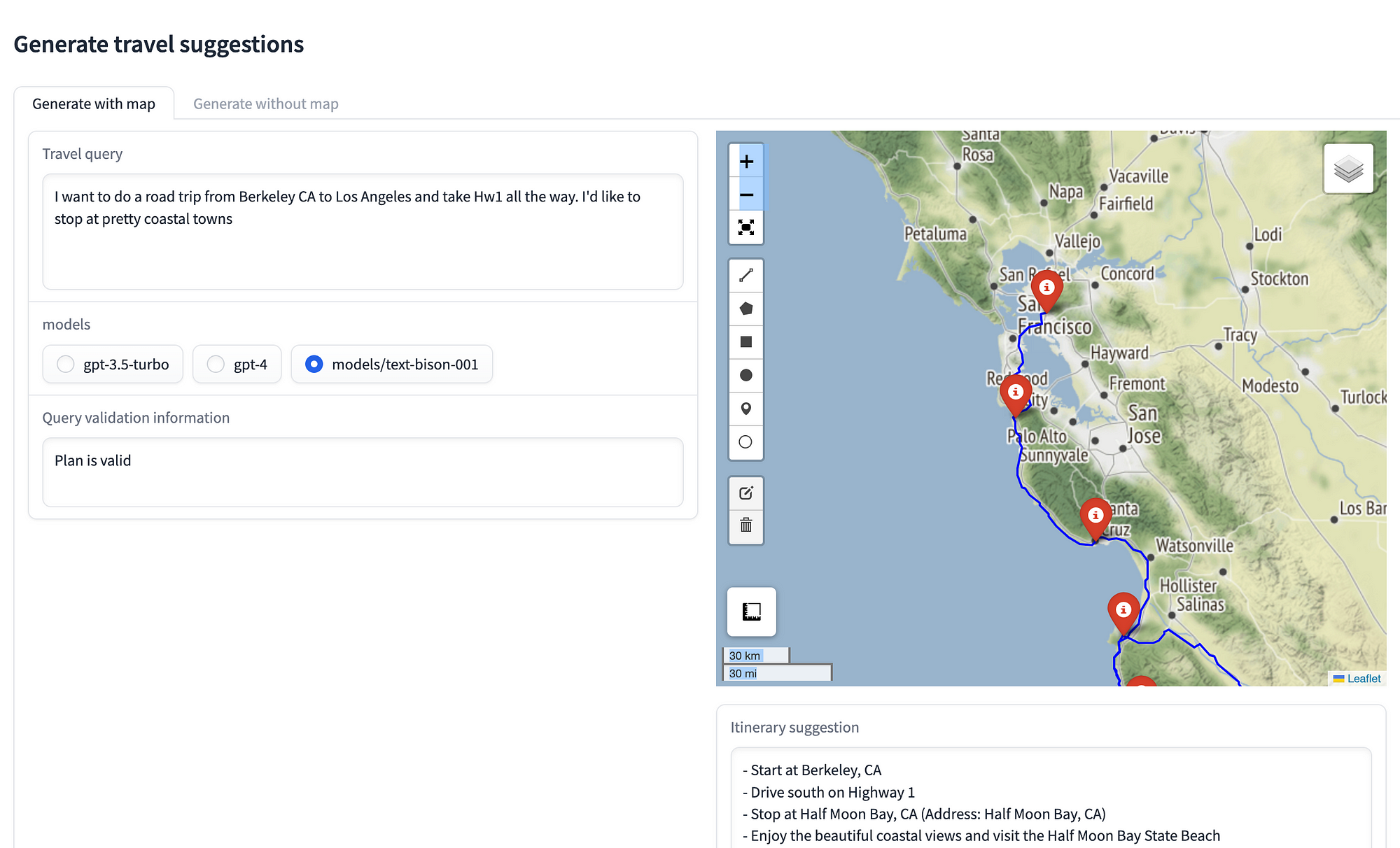
Credit: medium.com
Frequently Asked Questions
How To Start A Road Trip On Google Maps?
Open Google Maps, click on “Directions,” and enter your starting point and destination. Add stops by clicking the “+” icon. Customize your route and save it for easy access during your trip.
Can I Add Multiple Stops On Google Maps Road Trip?
Yes, Google Maps allows you to add up to 10 stops. Simply click the “+” button below your destination and enter additional stops to create a multi-stop road trip.
How To Save And Share A Google Maps Road Trip?
After creating your route, click the menu icon and select “Share or embed map. ” Copy the link to share with others or save it to your Google account for future use.
Does Google Maps Provide Estimated Travel Time For Road Trips?
Yes, Google Maps calculates estimated travel time based on current traffic. It updates in real-time to help you plan and adjust your road trip accordingly.
Conclusion
Creating a road trip on Google Maps is simple and fun. You can add stops and see the best routes easily. This tool helps you plan your journey step by step. Just follow the directions and enjoy your trip. Try different routes to find what suits you best.
Keep your plans clear and flexible for a smooth ride. Google Maps makes road trips less stressful and more enjoyable. Start planning now and explore new places with confidence.
One Response